Finger Spinner: Glow Art Draw
- 4.7
- Rating
- 1.00M
- Installs
- Free
- Price
 Analysis by App-foxy
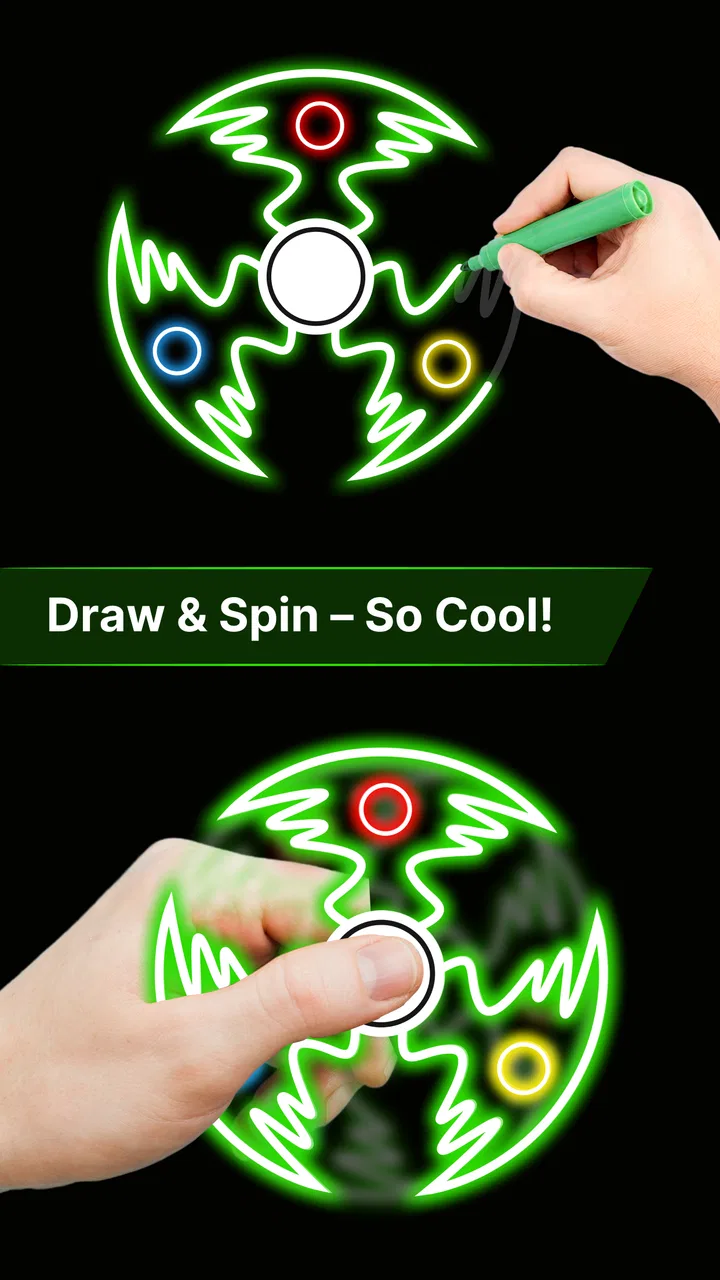
I approached Finger Spinner: Glow Art Draw as a small creative break rather than a full drawing studio, and that distinction matters. Its appeal is immediate: you touch the screen, make glowing marks, and turn a few spare minutes into something visually soothing. The concept sits between a finger-painting app and a digital fidget toy, with enough movement to keep your hands busy without asking you to learn a complicated toolset.
It is a free Art & Design app from Fusion Flow Tech, available for Everyone and designed for devices running Android 7.0 or newer. The current version is 1.1.3, and its 4.7 average from around 46 thousand ratings shows that the simple idea has connected with a sizeable audience. More than a million installs also suggest that this is not an obscure experiment, although popularity alone does not make it suitable for every kind of creative work.
How the glow drawing feels in everyday use
The first thing I noticed is that the app is built around immediacy. There is no intimidating blank canvas demanding a finished illustration. Instead, the act of dragging a finger across the display is the main event. Lines build into luminous shapes, and the result feels closer to visual doodling than traditional sketching. That makes it easy to open when I want a short distraction rather than a serious art session.
You May Also Like

 Blood Strike: 2.5 Anniversary
Blood Strike’s Loadouts Turn Every Drop Into a Tactical Gamble
A close look at Blood Strike’s custom loadouts: how fast access to signature weapons reshapes its battle royale rhythm, rewards preparation, and narrows the gap between fights.

 Pandora - Music & Podcasts
Pandora’s Music Is Easy to Start, but Harder to Recover
Pandora’s strength is its low-effort path from a seed to a station. Its weak spot is how much confidence it asks you to place in connection, setup, and quiet recovery.

 8 Ball Pool
 Is Built on Rivalries, Rematches, and Routine
A close look at the rivalries, rematches, shared routines, and unanswered safety questions that turn a quick pool match into a persistent mobile community.

 Samsung Music
’s Quiet Strength Is Playing What You Already Own
Its reach comes less from spectacle than from dependable access to a personal library. That simplicity is both the app’s strongest retention engine and its ceiling.

 AccuWeather: Weather Radar
AccuWeather Review: A Quick, Clear Forecast for Everyday Decisions
For everyday plans, the best forecast is the one you can understand quickly. AccuWeather makes rain timing, radar, and local conditions easy to act on, with a few trade-offs.

 Hill Climb Racing
Why Hill Climb Racing Still Turns Crashes Into One More Run
A tiny car, a bumpy hill and one more upgrade: Hill Climb Racing keeps resurfacing because its simple chaos makes every near-miss feel personal.
More From Our News Desk



The motion has a pleasant fidget quality. Repeating a circular gesture, sweeping from one side of the screen to the other, or layering quick loops creates a rhythm that can be relaxing. I would not describe it as a replacement for a proper mindfulness tool, but it can occupy the restless part of my attention while I wait for something or unwind before bed.
The store short description calls it “Finger Spinner,” and that is a useful way to understand the experience. The app is not primarily about carefully planning a composition. It rewards movement, repetition, and curiosity. If you enjoy watching patterns emerge from a few simple gestures, the low barrier is a strength. If you expect detailed brushes, layers, precision controls, or a complete illustration workflow, the same simplicity will feel limiting.
Speed expectations: quick to understand, deliberately lightweight in feel
My expectation for an app like this is not workstation-level power. Its value comes from getting from launch to first mark quickly. The interface concept is easy to grasp because the central action is obvious: use a finger to create glowing artwork and experiment with spinning motions. That makes it a good choice for a child exploring shapes, an adult taking a short break, or anyone who dislikes tutorials before trying something new.
The perceived speed is also influenced by the kind of artwork being created. A small, simple pattern should feel naturally immediate, while a session filled with repeated swipes and dense overlapping marks asks the device to keep drawing continuously. I would treat the app as a quick-play creative tool, not as a place to build a huge, highly detailed image over a long period.
One practical tip is to begin with broad, slow gestures instead of frantic tapping. Broad movements make it easier to see how the glow responds and help prevent the screen from becoming visual noise too quickly. Once I understand the rhythm, faster circles become more enjoyable. This small change turns the app from random finger movement into a more intentional fidget routine.
Another useful approach is to decide what I want from the session before touching the screen. For relaxation, I use repeated symmetrical motions. For experimentation, I deliberately change direction and overlap strokes. For a quick visual card or background idea, I leave more empty space and stop earlier. The app’s simplicity gives me no elaborate project structure, so setting that goal myself makes each short session feel less aimless.
Heavy-use moments: when repeated motion changes the experience
The busiest moments come when I keep drawing without pause, especially while filling the screen with crossing lines and circular patterns. That is where a lightweight art toy can feel different from a static sketchpad. The display is constantly responding to touch, and the visual result can become more demanding simply because there is more activity to show.
I found that short bursts suit the concept better than treating it like an all-evening art application. A few minutes of spinning and layering is enough to produce a satisfying result. Extending the same gesture for too long can reduce the novelty, particularly if I am looking for a specific finished picture rather than enjoying the process.
A realistic everyday use case is a commute or waiting-room pause. I can open the app, make a handful of bright loops, and stop before the moment turns into a commitment. It works especially well when I want something more engaging than scrolling but less demanding than a puzzle or game. The finger movement gives my attention a simple task, while the glow provides immediate visual feedback.
There is also a useful split between active and passive relaxation. Active relaxation means I am intentionally shaping the marks, perhaps trying to keep a pattern balanced. Passive relaxation means I let my finger repeat the same motion and watch the screen evolve. The first is better when I want a creative outlet; the second is better when I am mentally tired and do not want to make decisions.
For heavier sessions, I would avoid starting with the most complicated gesture I can imagine. Build a base pattern, pause to inspect it, and then add only one new movement. This creates a clearer sense of progression and makes it easier to stop at a pleasing point. It is a small workflow, but it addresses one of the app’s main weaknesses: without a structured project system, the user has to provide the structure.
Reliability and recovery during casual sessions
Finger Spinner: Glow Art Draw is at its best when it behaves like an instantly available toy. I value a tool like this less for advanced controls than for whether I can return to it without remembering a complicated process. The straightforward concept supports that kind of repeat use: open it, touch the display, and start experimenting.
At the same time, a touch-driven canvas can be sensitive to interruptions. Incoming notifications, accidental touches, screen rotation, or leaving the app can break the flow of a drawing session. I would therefore treat each creation as temporary unless the app clearly gives me a way to preserve it during use. That is not a criticism of the glow concept itself; it is simply the trade-off of working in a compact, spontaneous art environment rather than a full editor.
My practical recovery habit is to stop at natural milestones. After completing a central shape or a balanced set of loops, I take a moment before continuing. If the session is interrupted, I have at least reached a satisfying stage instead of losing a half-finished idea. This also helps with the visual problem of overworking a pattern until the screen becomes crowded.
The developer, Fusion Flow Tech, presents the app as a focused experience rather than a broad creative suite. That focus is helpful for reliability in the everyday sense: there are fewer concepts to learn and fewer decisions to make. However, users who need dependable project management, editable layers, or a detailed recovery workflow should look toward established drawing applications instead. Those alternatives are better suited to work that must survive interruptions and continue across multiple sessions.
Device constraints and who should be careful
The minimum operating-system requirement is Android 7.0, so the app is accessible to a wide range of Android devices that are still compatible with that platform. Even so, operating-system compatibility does not guarantee the same experience on every phone or tablet. Screen size, touch responsiveness, display quality, and general device age can all affect how comfortable glowing finger art feels.
On a smaller phone, the activity is intimate and easy to control, but there is less room for broad gestures. A tablet offers more space for sweeping patterns, although the larger surface may make one-handed use less convenient. This is one reason I would not judge the experience only by technical compatibility. The best device is the one whose screen lets you make the motions comfortably without repeatedly hitting the edges.
Resource demands are also tied to how much visual activity I create. A sparse doodle should be an easier workload than a screen packed with overlapping movement. I would avoid assuming that every older device will handle the most intense session identically. If the phone already struggles with other animated applications, a restrained drawing style is the sensible starting point.
Battery awareness matters for the same reason. The app is designed around a glowing, continuously changing display, so long sessions naturally keep the screen active. I see it as a short-break application rather than something I would leave running for hours. Lowering general screen brightness when comfortable and closing unrelated apps before a long creative session are reasonable habits, not because the app promises a particular battery profile, but because they make sense for any display-heavy activity.
Children can understand the basic interaction quickly, and the Everyone age rating makes the app approachable for family use. I would still guide younger users toward short sessions and help them understand that a spontaneous drawing may not be a permanent artwork. That expectation is important: the fun is in making the pattern, not necessarily in treating each result like a finished illustration.
Where it beats ordinary drawing apps, and where it does not
Compared with a conventional sketching application, the biggest advantage is the lack of pressure. A standard drawing app often presents a toolbox, color choices, brush settings, undo controls, and a canvas that invites careful work. That is excellent when I want control, but it can make a five-minute doodle feel like a project. This app strips the experience down to touch, movement, and glow, which makes it more inviting for casual play.
It also differs from a typical fidget app. Instead of offering only repetitive animation, it lets my movements leave a visible creative trace. That gives the session a small sense of authorship. I am not merely watching a spinner; I am influencing the pattern. For someone who wants tactile repetition with a visual payoff, that combination is the app’s clearest reason to exist.
The trade-off is control. A serious drawing app is better when I need accurate lines, recognizable objects, revisions, or a multi-step illustration. A dedicated relaxation app may be better when I want guided breathing, ambient sound, or a structured calming routine. A normal fidget toy game may be better when I want a narrowly defined interaction with predictable feedback. Finger Spinner: Glow Art Draw sits between these categories, and its success depends on wanting that middle ground.
One non-obvious strength is that the lack of a demanding objective makes it suitable for experimenting with visual rhythm. I can test whether repeated curves, mirrored movements, or uneven bursts feel more satisfying without worrying about artistic correctness. One non-obvious weakness is that the same freedom can make the experience feel shallow after the initial curiosity fades. It works best when I bring a small personal challenge, such as creating a balanced pattern in under a few minutes.
Useful routines for getting more from the app
I recommend trying three distinct routines instead of using the same gesture every time. First, make a slow central spiral and stop before the screen is full. This is the calmest approach and gives the glow room to remain readable. Second, create mirrored sweeps from opposite sides to explore balance. Third, use short directional changes to make a more energetic abstract image. These routines reveal different sides of the same simple interaction.
A second tip is to treat empty space as part of the drawing. Because glowing marks attract attention, filling every area can make the result harder to read. Leaving a quiet section around the main pattern creates contrast and makes a small amount of movement look more deliberate. This is particularly helpful on a phone, where the available viewing area is limited.
A third tip is to use the app as a warm-up before more serious art. I can spend a few minutes making loose shapes, then move to a conventional drawing tool with my hand already active. It will not replace sketch practice, but it can reduce the hesitation that comes from opening a blank canvas. The app is especially useful for people who want to loosen up rather than produce a polished result immediately.
I would skip it if my main goal is professional illustration, precise design work, or a dependable archive of editable projects. I would also skip it if repetitive finger motion and bright visual effects are not relaxing for me. The experience is intentionally narrow, so buying into it as a complete art package would lead to disappointment. Its value is in the quick, tactile loop, not in the breadth of a full creative suite.
Free access, maturity, and overall performance verdict
The app is free, which makes experimentation easy. I can try the glow-drawing approach without committing money or learning a large software package first. That is important for a casual tool: the cost barrier matches the low-pressure design. The release date of July 6, 2025, also places it among relatively recent additions to the category, while version 1.1.3 indicates that it has already moved beyond its initial release build.
Its audience response is encouraging, with an average of 4.7 and over a million installs. I read those figures as evidence that the simple interaction has broad appeal, not as proof that it will satisfy every artist. The app’s strongest users are likely to be people who want quick glowing doodles, a finger-based fidget activity, or a gentle creative pause. The weakest match is someone comparing it with feature-rich drawing software.
On speed, I see a focused experience that should feel most comfortable during short sessions and moderate visual activity. On heavy use, the sensible approach is to build patterns gradually rather than cover the screen immediately. On reliability, the uncomplicated concept helps casual returns, but I would still finish work at natural stopping points because spontaneous drawing is more fragile than a structured project workflow. On device constraints, Android 7.0 support is welcoming, while screen size, touch quality, and device age remain practical considerations.
My final opinion is positive but specific: this is a pleasant creative fidget app, not a miniature professional studio. I would recommend it to a friend who wants to make glowing patterns with one finger, relax through repetitive movement, or fill a few idle minutes with something more expressive than passive scrolling. The best reason to install it is the immediate connection between a simple gesture and a satisfying visual response. If that loop sounds appealing, the free entry point makes it easy to judge for yourself. If you need precision, saved project depth, or advanced artistic control, a conventional drawing app will be the better choice.
FAQs for Finger Spinner: Glow Art Draw
01What is Finger Spinner: Glow Art Draw?
Finger Spinner: Glow Art Draw is an engaging mobile application that combines the simplicity of spinning with the creativity of glow art drawing. Users can create mesmerizing patterns and designs while enjoying the soothing motion of a virtual fidget spinner. The app offers a variety of colors and spinner styles to enhance the artistic experience.
02Is Finger Spinner: Glow Art Draw available for both Android and iOS?
Yes, Finger Spinner: Glow Art Draw is available for download on both Android and iOS platforms. Users can find it on the Google Play Store for Android devices and the Apple App Store for iOS devices. This ensures a seamless experience across different mobile operating systems.
03Does Finger Spinner: Glow Art Draw require an internet connection?
Finger Spinner: Glow Art Draw can be enjoyed offline, providing users with the flexibility to use the app without an internet connection. This makes it a great option for on-the-go entertainment, allowing users to create art and enjoy spinning wherever they are, without the need for Wi-Fi or data.
04Are there any in-app purchases in Finger Spinner: Glow Art Draw?
Yes, Finger Spinner: Glow Art Draw offers in-app purchases. These may include additional spinner designs, exclusive color palettes, or premium features that enhance the overall experience. While the basic features of the app are free, these purchases provide users with more customization and creativity options.
05Is Finger Spinner: Glow Art Draw suitable for children?
Finger Spinner: Glow Art Draw is suitable for users of all ages, including children. The app is designed to be user-friendly and safe, offering a creative outlet that can be both educational and entertaining. Parents can feel confident allowing their children to explore the app’s features and enjoy its artistic elements.
Pros
- Intuitive and easy-to-use interface.
- Wide variety of glow effects and colors.
- Smooth performance with minimal lag.
- Suitable for all ages and skill levels.
- Offline mode available for uninterrupted use.
Cons
- Limited customization options for spinners.
- Ads can be intrusive during gameplay.
- Requires frequent updates for new features.
- In-app purchases necessary for some content.
- No multiplayer or social sharing features.

Finger Spinner: Glow Art Draw
Gallery